2 posts tagged with "VoiceVox"

View all tags

Creating Hime — A VSCode Extension for Chatting with Multiple Generative AI Agents

· 2 min read
ひかり
Main bloger

I built a VSCode extension called Hime (HikariMessage) that lets you chat with multiple AI providers.

It follows a BYOK (Bring Your Own Key) model — you just need an API key from each provider you want to use.

What is Hime?

Hime is a generative AI chat extension that lives in the VSCode sidebar. It supports Anthropic, OpenAI, Azure OpenAI, OpenRouter, and Ollama, and lets you switch between providers easily via a dropdown menu.

Key Features

Multiple AI Provider Support

The following providers are supported:

  • Anthropic (Claude)
  • OpenAI
  • Azure OpenAI
  • OpenRouter
  • Ollama

Streaming Responses

Responses are displayed in real time, so even long answers feel snappy.

MCP

You can enable MCP by adding a JSON configuration in the settings like this:

Example

{
"filesystem": {
"command": "npx",
"args": ["-y", "@modelcontextprotocol/server-filesystem", "C:\\Users"]
}
}

Rich UI

  • Markdown rendering
  • Syntax highlighting for code blocks
  • Copy button for code blocks
  • MCP tool output display

Persistent Chat History

Conversation history is saved as JSON files under ~/.hime/chats/. You can pick up right where you left off even after restarting VSCode.

Automatic System Prompt

Workspace information, OS details, and the context of your currently open editor are automatically injected into the system prompt. Just say "fix this file" and the AI already knows what you're looking at.

Setup

Requires Node.js 20+ and VSCode 1.96+.

git clone https://github.com/Himeyama/hime
cd hime
npm install
npm run watch # Development: watches both Extension Host and Webview simultaneously

Then press F5 in VSCode to launch the extension host. API keys can be entered via the settings panel in the sidebar and are stored encrypted using VSCode's SecretStorage.

Wrapping Up

Hime's strength is that you can interact with AI without leaving your editor — and even delegate tool execution via MCP. Give it a try!

Repository: https://github.com/Himeyama/hime
Observing the VOICEVOX API

· 3 min read

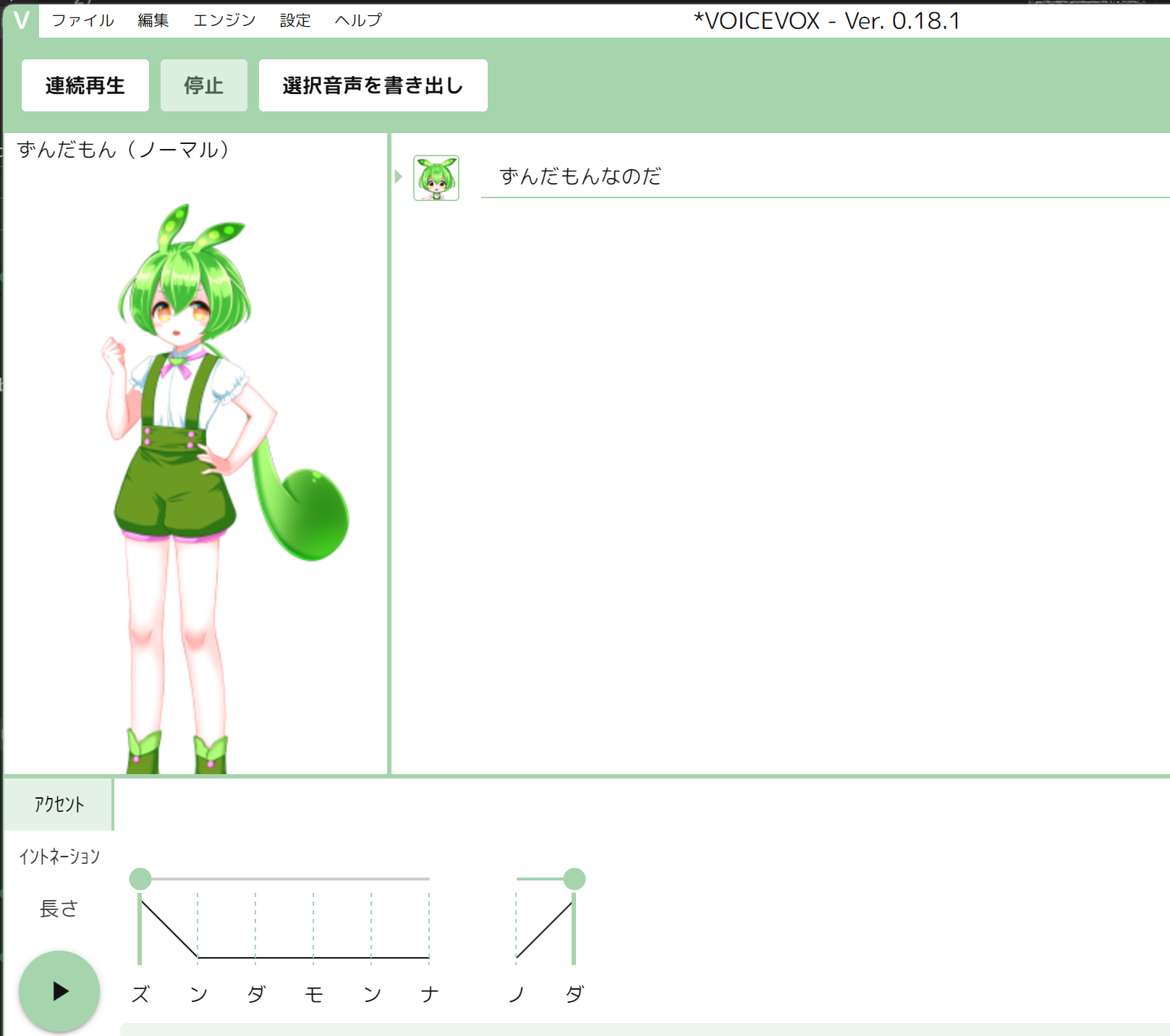
VOICEVOX is stated to be composed of an editor, an engine, and a core.

Reference: Overall Structure

It seems the editor is the application, the engine is an HTTP server, and the core is a module that performs speech synthesis processing.

This implies that the editor makes REST API calls (hereinafter referred to as API) to the engine.

So, this article will observe the content of that API.

Wireshark was used to capture the API traffic.

Communication on Startup

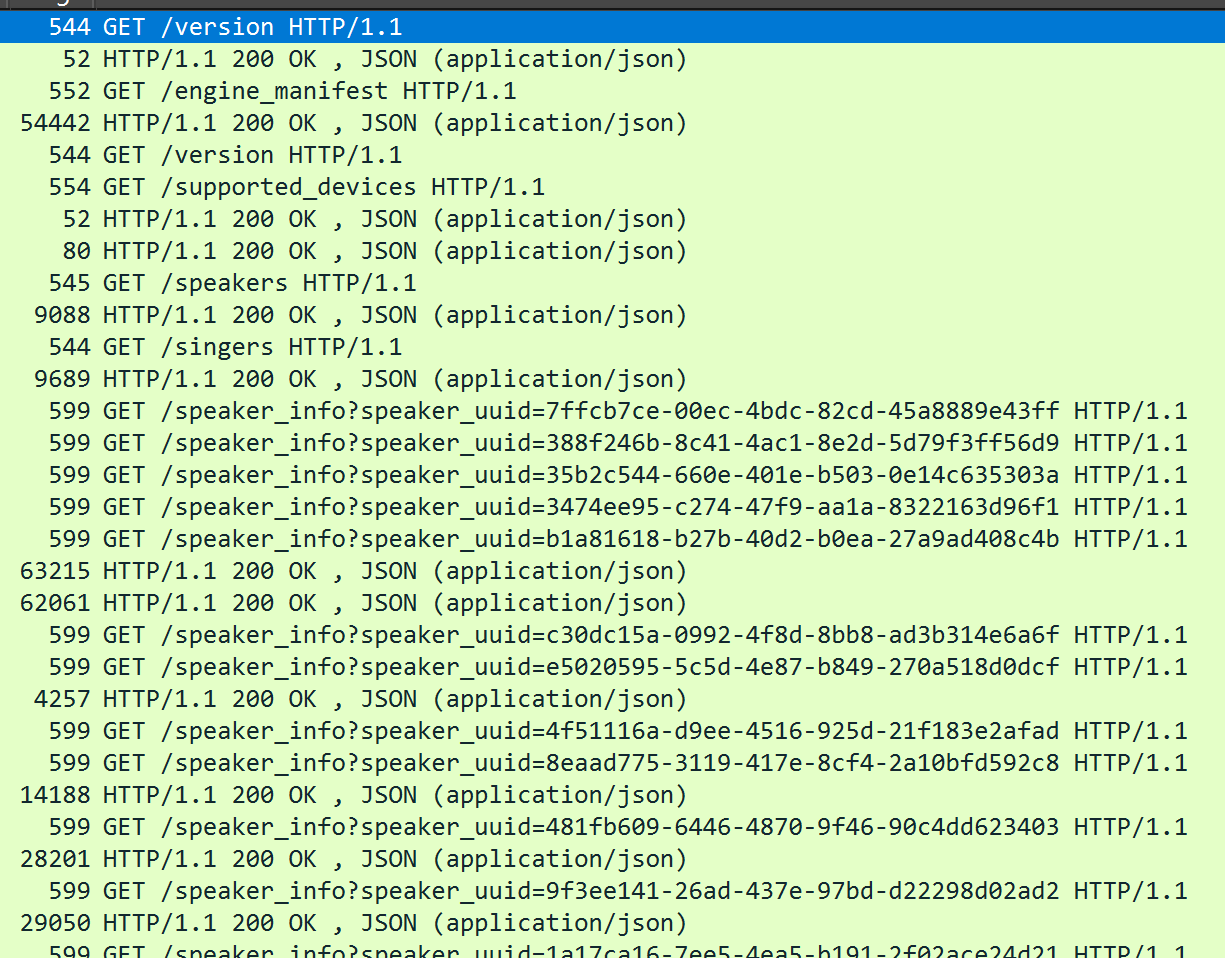
Here are the results after filtering with http and tcp.port == 50021.

The following information appears to be read on startup:

  • Version information /version
  • Engine manifest information /engine_manifest
  • Speaker information /speakers (character list like Zundamon)
  • Singer information /singers (same as above)

After obtaining speaker/singer information, more detailed information for each character is retrieved (e.g., /speaker_info?speaker_uuid=xxx, /singer_info?speaker_uuid=xxx).

Communication during Speech Synthesis Request

Now, I sent a speech synthesis request with Zundamon and peeked at the API.

It seems that audio is acquired in the following flow:

  1. Accent information via /accent_phrases
  2. Speech synthesis of Zundamon's voice via /synthesis?speaker=3

The request body sent in (2.) is similar to the response from (1.).

Therefore, the flow appears to be: get accents in (1.), then synthesize speech from those accents in (2.).

Actually Calling the API

I used the httpie tool to call the API.

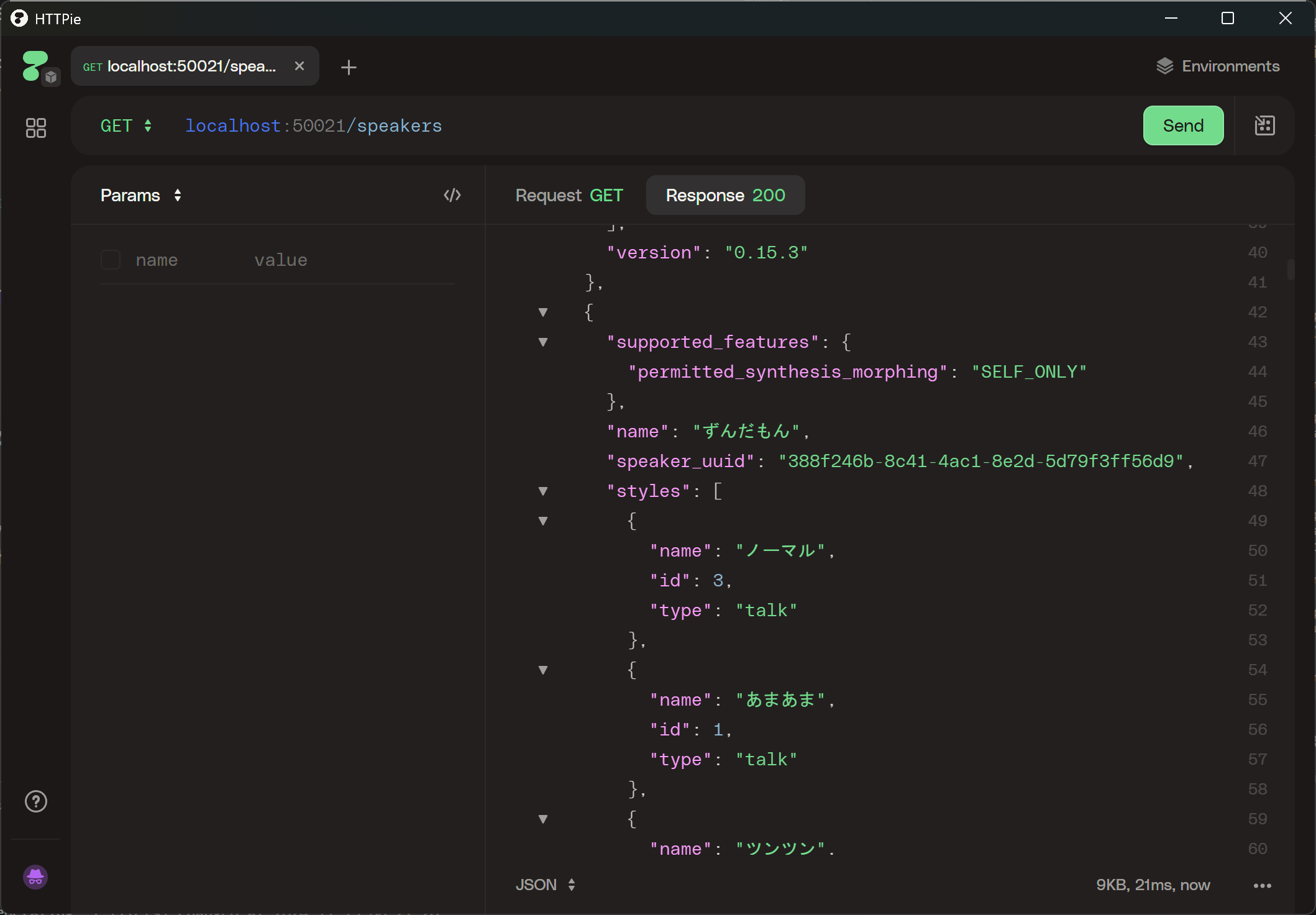
  1. Get Speaker Information

It was found that Zundamon (Normal) has an ID of 3.

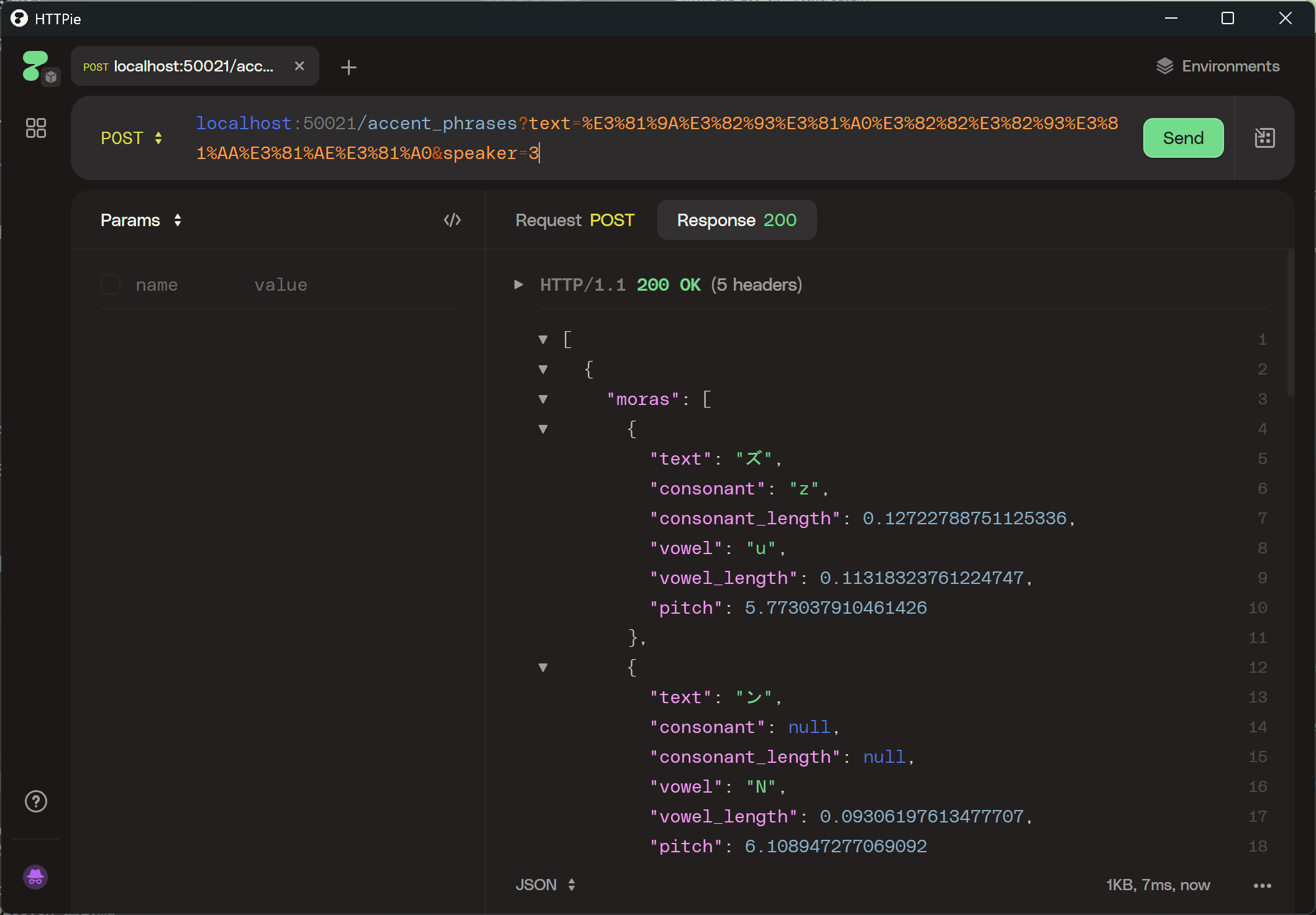
  1. Get Accent Information

I tried to get accent information for ずんだもんなのだ (Zundamon nanoda). (Unlike speaker information, this is retrieved with a POST request.)

  1. Speech Synthesis

Create a request body like the following:

{
"accent_phrases": </data obtained from /accent_phrases>,
"speedScale": 1,
"pitchScale": 0,
"intonationScale": 1,
"volumeScale": 1,
"prePhonemeLength": 0.1,
"postPhonemeLength": 0.1,
"outputSamplingRate": 24000,
"outputStereo": false,
"kana": ""
}

Since httpie cannot handle WAV files, I will send the request using PowerShell.

# Define URL and JSON data
$url = 'http://localhost:50021/synthesis?speaker=3'
$jsonBody = @"
{
"accent_phrases": [
{
"moras": [
{
"text": "ズ",
"consonant": "z",
"consonant_length": 0.12722788751125336,
"vowel": "u",
"vowel_length": 0.11318323761224747,
"pitch": 5.773037910461426
},
{
"text": "ン",
"consonant": null,
"consonant_length": null,
"vowel": "N",
"vowel_length": 0.09306197613477707,
"pitch": 6.108947277069092
},
{
"text": "ダ",
"consonant": "d",
"consonant_length": 0.04249810427427292,
"vowel": "a",
"vowel_length": 0.09372275322675705,
"pitch": 6.09743070602417
},
{
"text": "モ",
"consonant": "m",
"consonant_length": 0.07012023776769638,
"vowel": "o",
"vowel_length": 0.1172478124499321,
"pitch": 5.932623386383057
},
{
"text": "ン",
"consonant": null,
"consonant_length": null,
"vowel": "N",
"vowel_length": 0.06496299058198929,
"pitch": 5.745952129364014
},
{
"text": "ナ",
"consonant": "n",
"consonant_length": 0.038462959229946136,
"vowel": "a",
"vowel_length": 0.08576127141714096,
"pitch": 5.5794854164123535
}
],
"accent": 1,
"pause_mora": null,
"is_interrogative": false
},
{
"moras": [
{
"text": "ノ",
"consonant": "n",
"consonant_length": 0.05504273623228073,
"vowel": "o",
"vowel_length": 0.0903041884303093,
"pitch": 5.551316261291504
},
{
"text": "ダ",
"consonant": "d",
"consonant_length": 0.05024997144937515,
"vowel": "a",
"vowel_length": 0.20450790226459503,
"pitch": 5.633930206298828
}
],
"accent": 2,
"pause_mora": null,
"is_interrogative": false
}
],
"speedScale": 1,
"pitchScale": 0,
"intonationScale": 1,
"volumeScale": 1,
"prePhonemeLength": 0.1,
"postPhonemeLength": 0.1,
"outputSamplingRate": 24000,
"outputStereo": false,
"kana": ""
}
"@

# Create HTTP headers
$headers = @{
'Content-Type' = 'application/json'
}

# Send POST request and get response
$response = Invoke-WebRequest -Uri $url -Method Post -Headers $headers -Body $jsonBody -OutFile "output.wav"

# Open and play
start output.wav

VOICEVOX: Zundamon

That's all!