EC2 Instance Connect Summary
What is EC2 Instance Connect?
EC2 Instance Connect is a service designed to simplify SSH connections to AWS EC2 instances.
With traditional SSH connection methods, a public key needed to be pre-configured on the instance. However, EC2 Instance Connect allows you to send a temporary SSH public key to the instance to establish a connection. (However, an Instance Connect package needs to be installed, except for some AMIs).
How to Connect to an Instance
There are several ways to connect to an instance.
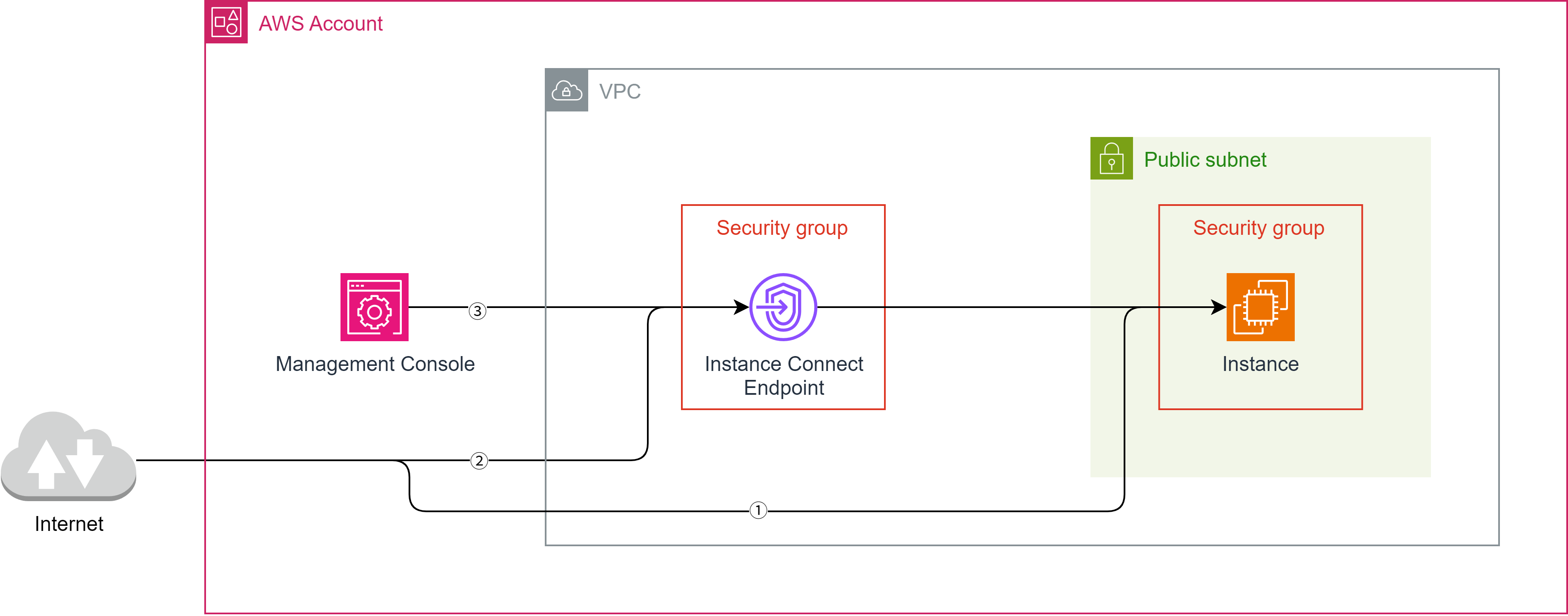
① Direct Connection from the Internet (Not related to Instance Connect)
Direct connection from the internet requires passing through an Internet Gateway or a NAT Gateway. It also needs a public IP address and cannot be used in a private network environment.
Since the ssh command can be used, it's the simplest method.
ssh <username>@<public IP address>
② Connection via EC2 Instance Connect Endpoint
By using the AWS CLI to connect via an EC2 Instance Connect endpoint, a public IP address is not required.
This also helps save on costs (a few hundred yen per month).
You can connect using a command like the following with the AWS CLI, but you must first import a key pair and configure it for the instance.
For example, a specific connection method is possible with the following command:
aws ec2-instance-connect ssh --private-key-file .ssh/id_ed25519 --os-user <username> --instance-id <instance ID> --connection-type eice
Note: You must first obtain an access key and configure it using aws configure.
This connection method is best if you want to avoid connecting to the internet and wish to use a non-official AMI.
③ Instance Connect Connection from AWS Management Console
For Amazon Linux and Ubuntu, if you have an Instance Connect endpoint created, you can connect to the instance directly from the Management Console.
However, an Instance Connect package needs to be installed, except for some AMIs.
For details, refer to: https://docs.aws.amazon.com/ja_jp/AWSEC2/latest/UserGuide/ec2-instance-connect-set-up.html
④ Other Connection Methods
Connection from Session Manager
Two endpoints for Session Manager need to be set up, and an IAM role that allows connections from Session Manager must be attached to the instance.
Also, a Session Manager package needs to be installed, except for some AMIs.
Connection from EC2 Serial Console
Using the serial console allows direct connection to the instance. Be aware that if a password is not set, you won't even be able to log in.
Security Settings
Network ACL (Subnet where the instance resides)
By default, all traffic is allowed, so no specific configuration is needed if using the default settings.
The minimum required settings are as follows:
Inbound Rules
Inbound rules must allow SSH (port 22).
This allows communication to the instance's SSH server, which typically listens on port 22.
Outbound Rules
Outbound rules must allow custom TCP (ports 1024-65535).
1024-65535 is the port range used by the client side during an SSH connection.
Security Group (Instance)
Inbound Rules
Inbound rules must allow SSH (port 22).
This setting is absolutely necessary.
Outbound Rules
Security groups remember communication (stateful), so outbound rules are usually not required.
Security Group (EC2 Instance Connect Endpoint)
Inbound Rules
Not required due to statefulness.
Outbound Rules
SSH (port 22) must be allowed.
This allows communication to the instance's port 22.
Loading...