3 posts tagged with "EC2"

View all tags

EC2 Instance Connect fails to connect from Windows without a key

· One min read
ひかり
Main bloger

Unable to connect to Instance Connect on Windows

PS C:\> aws ec2-instance-connect ssh --instance-id i-0aa38de21acf2aa1c --region ap-south-1
Bad permissions. Try removing permissions for user: \\OWNER RIGHTS (S-1-3-4) on file C:/Users/hikari/AppData/Local/Temp/tmpm9m1bf7j/private-key.
@@@@@@@@@@@@@@@@@@@@@@@@@@@@@@@@@@@@@@@@@@@@@@@@@@@@@@@@@@@
@ WARNING: UNPROTECTED PRIVATE KEY FILE! @
@@@@@@@@@@@@@@@@@@@@@@@@@@@@@@@@@@@@@@@@@@@@@@@@@@@@@@@@@@@
Permissions for 'C:\\Users\\hikari\\AppData\\Local\\Temp\\tmpm9m1bf7j\\private-key' are too open.
It is required that your private key files are NOT accessible by others.
This private key will be ignored.
Load key "C:\\Users\\hikari\\AppData\\Local\\Temp\\tmpm9m1bf7j\\private-key": bad permissions
[email protected]: Permission denied (publickey,gssapi-keyex,gssapi-with-mic).

Verification as of 2025/06/11.

Login is possible from WSL

PS C:\> wsl -- aws ec2-instance-connect ssh --instance-id i-0aa38de21acf2aa1c --region ap-south-1
, #_
~\_ ####_ Amazon Linux 2023
~~ \_#####\
~~ \###|
~~ \#/ ___ https://aws.amazon.com/linux/amazon-linux-2023
~~ V~' '->
~~~ /
~~._. _/
_/ _/
_/m/'
Last login: Tue Jun 10 22:50:33 2025 from 192.168.0.183
[ec2-user@ip-192-168-0-4 ~]$

Why?

Addendum

Downgrading allowed connection.

I wish they would fix this.

Reference: https://github.com/aws/aws-cli/issues/9114

msiexec.exe /i https://awscli.amazonaws.com/AWSCLIV2-2.17.35.msi

EC2 Instance Connect Summary

· 3 min read
ひかり
Main bloger

What is EC2 Instance Connect?

EC2 Instance Connect is a service designed to simplify SSH connections to AWS EC2 instances.

With traditional SSH connection methods, a public key needed to be pre-configured on the instance. However, EC2 Instance Connect allows you to send a temporary SSH public key to the instance to establish a connection. (However, an Instance Connect package needs to be installed, except for some AMIs).

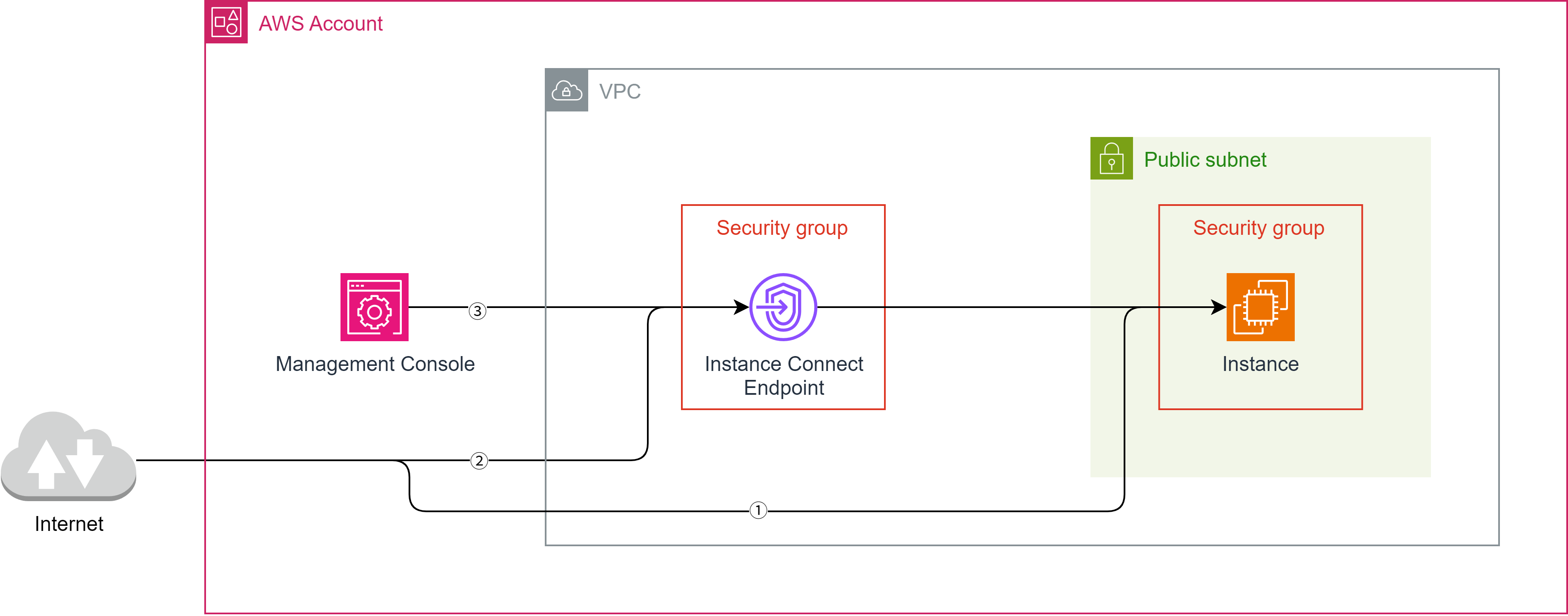
How to Connect to an Instance

There are several ways to connect to an instance.

Direct connection from the internet requires passing through an Internet Gateway or a NAT Gateway. It also needs a public IP address and cannot be used in a private network environment.

Since the ssh command can be used, it's the simplest method.

ssh <username>@<public IP address>

② Connection via EC2 Instance Connect Endpoint

By using the AWS CLI to connect via an EC2 Instance Connect endpoint, a public IP address is not required.

This also helps save on costs (a few hundred yen per month).

You can connect using a command like the following with the AWS CLI, but you must first import a key pair and configure it for the instance.

For example, a specific connection method is possible with the following command:

aws ec2-instance-connect ssh --private-key-file .ssh/id_ed25519 --os-user <username> --instance-id <instance ID> --connection-type eice

Note: You must first obtain an access key and configure it using aws configure.

This connection method is best if you want to avoid connecting to the internet and wish to use a non-official AMI.

③ Instance Connect Connection from AWS Management Console

For Amazon Linux and Ubuntu, if you have an Instance Connect endpoint created, you can connect to the instance directly from the Management Console.

However, an Instance Connect package needs to be installed, except for some AMIs.

For details, refer to: https://docs.aws.amazon.com/ja_jp/AWSEC2/latest/UserGuide/ec2-instance-connect-set-up.html

④ Other Connection Methods

Connection from Session Manager

Two endpoints for Session Manager need to be set up, and an IAM role that allows connections from Session Manager must be attached to the instance.

Also, a Session Manager package needs to be installed, except for some AMIs.

Connection from EC2 Serial Console

Using the serial console allows direct connection to the instance. Be aware that if a password is not set, you won't even be able to log in.

Security Settings

Network ACL (Subnet where the instance resides)

By default, all traffic is allowed, so no specific configuration is needed if using the default settings.

The minimum required settings are as follows:

Inbound Rules

Inbound rules must allow SSH (port 22).

This allows communication to the instance's SSH server, which typically listens on port 22.

Outbound Rules

Outbound rules must allow custom TCP (ports 1024-65535).

1024-65535 is the port range used by the client side during an SSH connection.

Security Group (Instance)

Inbound Rules

Inbound rules must allow SSH (port 22).

This setting is absolutely necessary.

Outbound Rules

Security groups remember communication (stateful), so outbound rules are usually not required.

Security Group (EC2 Instance Connect Endpoint)

Inbound Rules

Not required due to statefulness.

Outbound Rules

SSH (port 22) must be allowed.

This allows communication to the instance's port 22.

Using Official Rocky Linux Images on AWS

· 5 min read
ひかり
Main bloger

How to choose an AMI

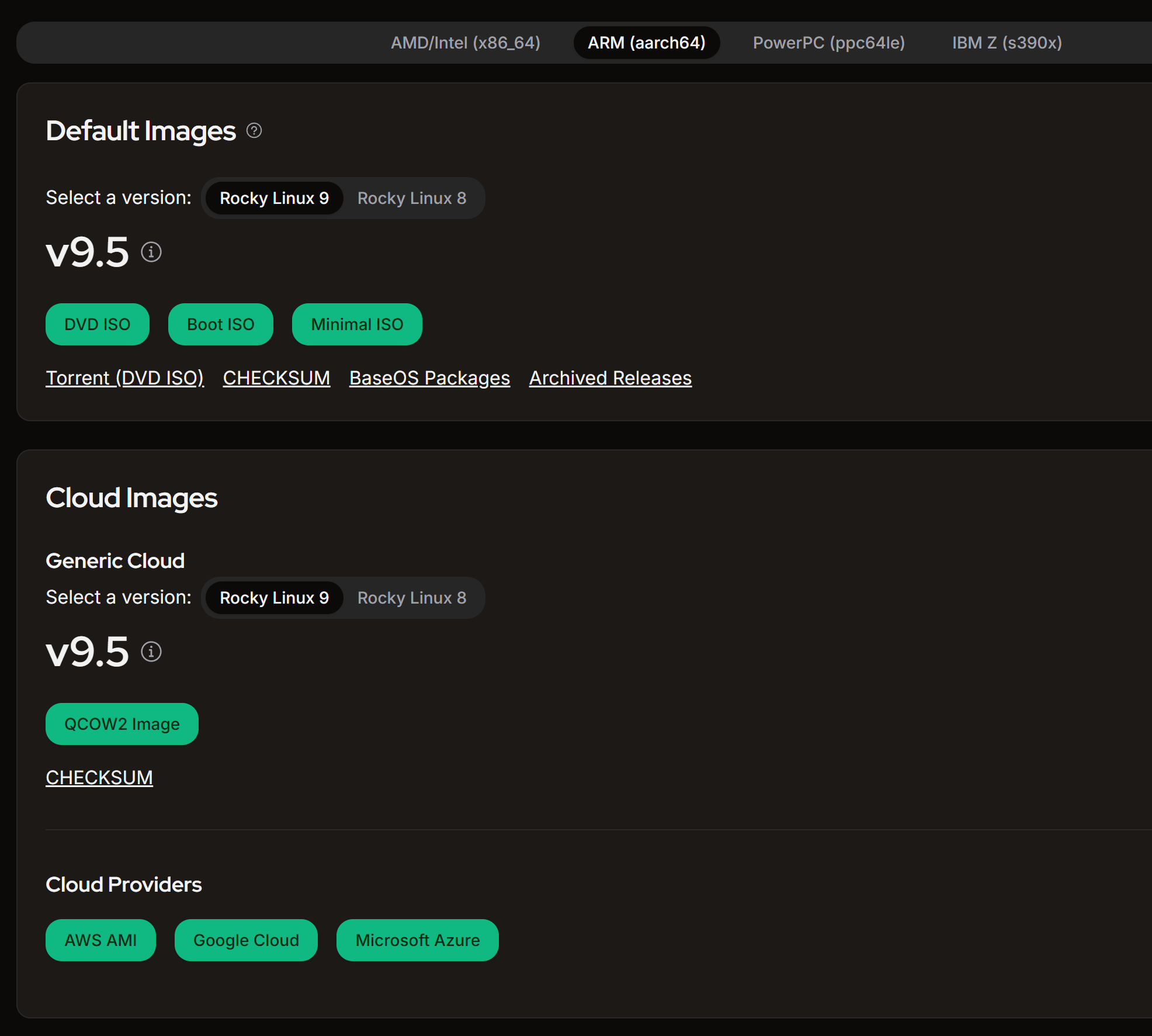
Obtain the AMI from the official page.

https://rockylinux.org/ja-JP/download

Select the architecture for your instance (ARM (aarch64)) and choose AWS AMI under Cloud Images.

alt text

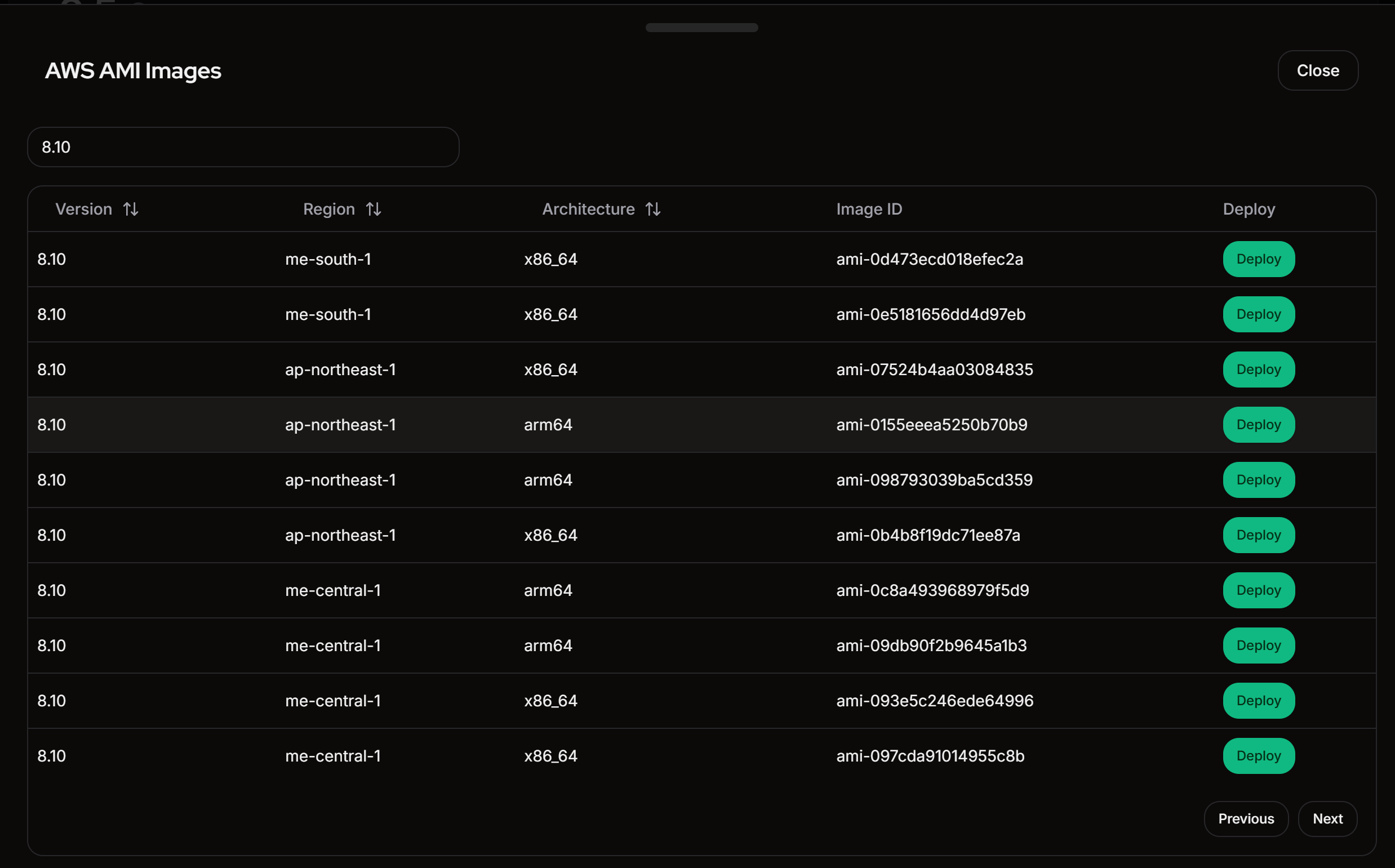
Filter by version number to find the appropriate one.

alt text

The AMI ID cannot be copied directly, so click the "Deploy" button and copy it from the AWS console.

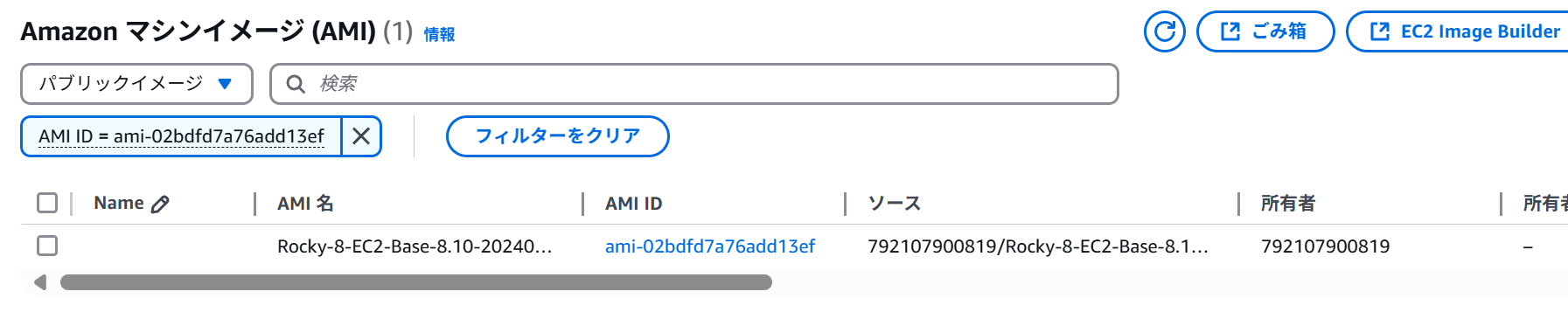
Searching by AMI ID will show it.

alt text

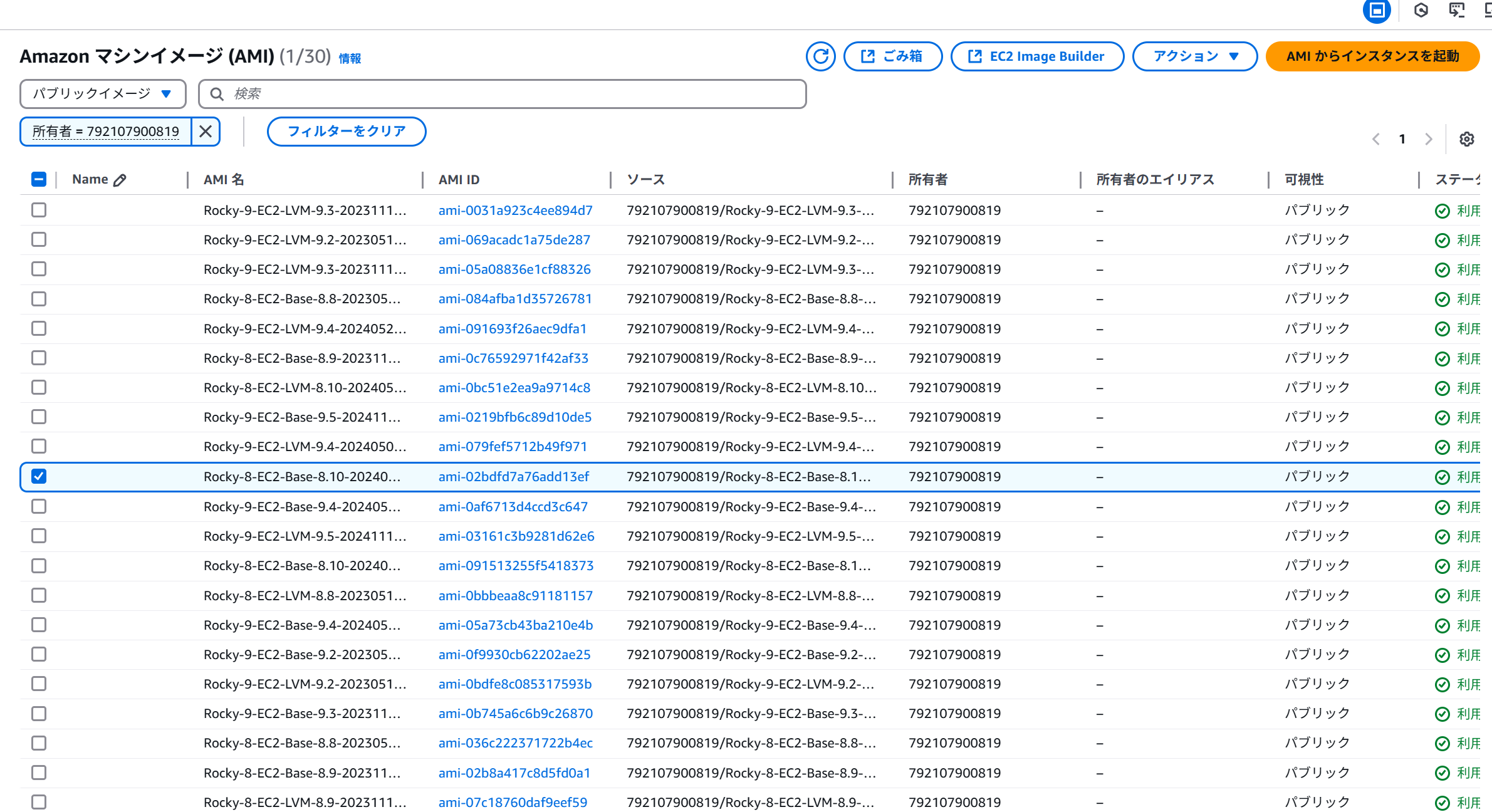
It might be better to filter by owner.

Owner = 792107900819

alt text

Pre-requisites

  • Register a key pair
  • Run ssh-keygen -t ed25519 beforehand to create a public key, then import .ssh/id_ed25519.pub into your key pair.
  • Install AWS CLI
  • Install the CLI.
  • Configure access keys (aws configure).

Setting up the Network

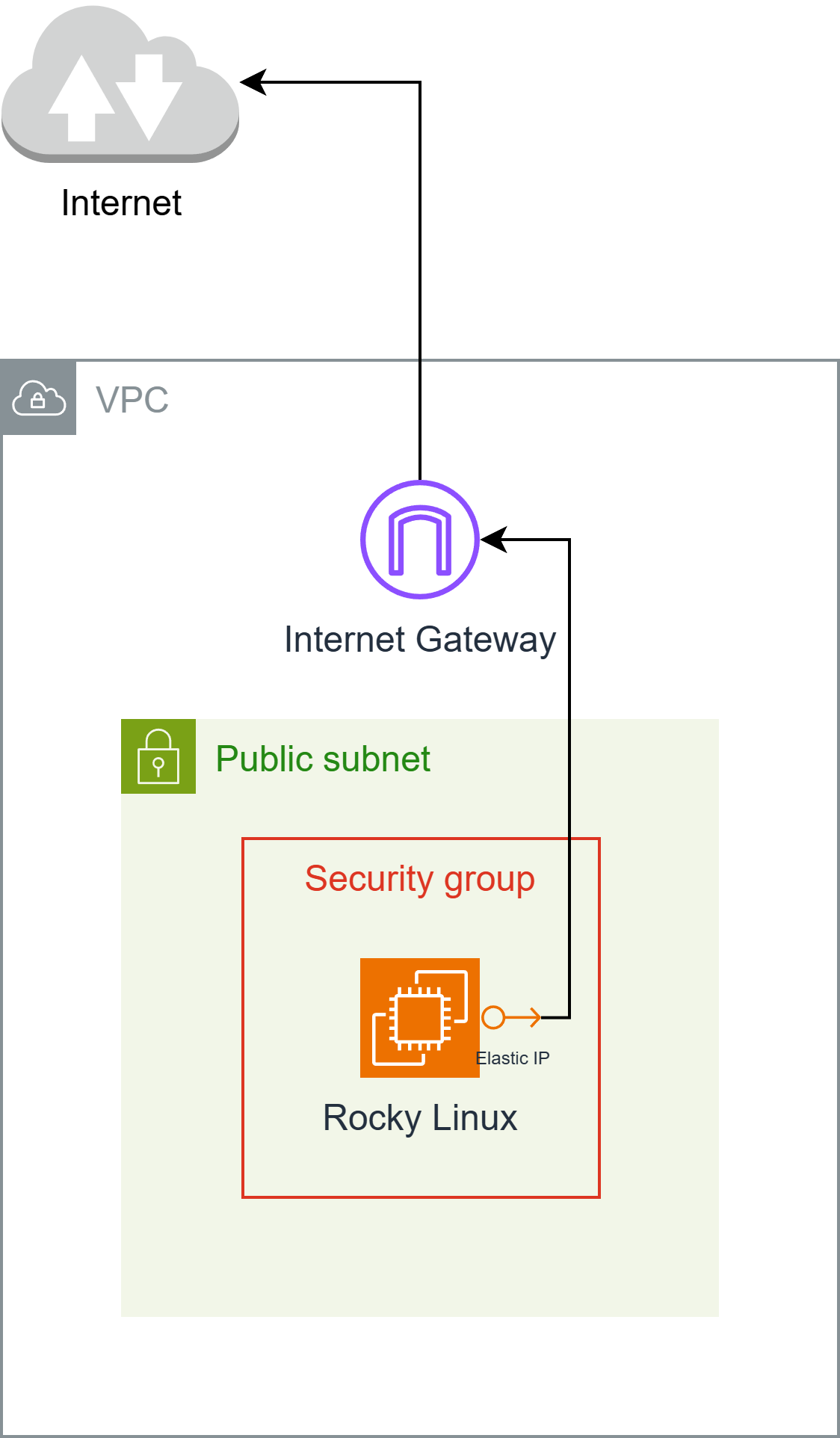
An Elastic IP is cheaper than a NAT Gateway, so create an Elastic IP.

The network architecture looks like this:

Create an EC2 Instance Connect Endpoint

alt text

Creating an EC2 Instance Connect Endpoint allows you to log in from the AWS CLI.

Launching an Instance

  • Allow ICMP (Echo Request) to accept ping requests (Security Group).
  • Allow SSH connections (Security Group).
  • Mumbai region and arm64 instances are inexpensive.
  • Requires 1.5 GiB RAM per vCPU (at least t4g.medium).

Therefore, I launched an instance with the following conditions:

  • Region: Mumbai
  • Architecture: arm64
  • AMI: RHEL 8.10 (LVM, aarch64); ami-0415efd8380284dc4
  • Instance Type: t4g.medium
  • Key pair: Public key created on PC (.ssh/id_ed25519.pub)
  • Network: Public subnet (associated with a route table that defines a route to an internet gateway)
  • Security Group: Create a security group (default name)
  • SSH, 0.0.0.0/0
  • Custom ICMP - IPv4 (Echo request), 0.0.0.0/0
  • Storage: 1x 10GiB, gp3

Connection

Open your PC's terminal and run the following:

aws ec2-instance-connect ssh --private-key-file .ssh/id_ed25519 --os-user rocky --instance-id i-*****************

Install Instance Connect Package

The Rocky Linux AMI does not include the Instance Connect package, preventing connections from the Management Console. Therefore, the package must be installed.

Refer to https://docs.aws.amazon.com/ja_jp/AWSEC2/latest/UserGuide/ec2-instance-connect-set-up.html for instructions on downloading the package.

  • Note: Select the RHEL package.
  • Note: It may not work correctly if the OS major version or architecture differs.

Example

curl https://amazon-ec2-instance-connect-us-west-2.s3.us-west-2.amazonaws.com/latest/linux_arm64/ec2-instance-connect.rhel8.rpm -o /tmp/ec2-instance-connect.rpm
curl https://amazon-ec2-instance-connect-us-west-2.s3.us-west-2.amazonaws.com/latest/linux_amd64/ec2-instance-connect-selinux.noarch.rpm -o /tmp/ec2-instance-connect-selinux.rpm
sudo dnf install -y /tmp/ec2-instance-connect.rpm /tmp/ec2-instance-connect-selinux.rpm

Once installed, you will be able to access the instance from the Management Console.

alt text

CDK (typescript)

I've included the CDK code I created for reference.

Remember to change the keyName (key pair) name.

import * as cdk from 'aws-cdk-lib';
import * as ec2 from 'aws-cdk-lib/aws-ec2';

export interface RockyLinuxStackProps extends cdk.StackProps {
}

export class RockyLinuxStack extends cdk.Stack {
public constructor(scope: cdk.App, id: string, props: RockyLinuxStackProps = {}) {
super(scope, id, props);

// Resources
const ec2dhcpOptions = new ec2.CfnDHCPOptions(this, 'EC2DHCPOptions', {
domainName: 'ap-south-1.compute.internal',
domainNameServers: [
'AmazonProvidedDNS',
],
tags: [
],
});
ec2dhcpOptions.cfnOptions.deletionPolicy = cdk.CfnDeletionPolicy.DELETE;

const ec2InternetGateway = new ec2.CfnInternetGateway(this, 'EC2InternetGateway', {
tags: [
{
value: 'igw',
key: 'Name',
},
],
});
ec2InternetGateway.cfnOptions.deletionPolicy = cdk.CfnDeletionPolicy.DELETE;

const ec2vpc = new ec2.CfnVPC(this, 'EC2VPC', {
cidrBlock: '10.0.0.0/16',
enableDnsSupport: true,
instanceTenancy: 'default',
enableDnsHostnames: true,
tags: [
{
value: 'vpc',
key: 'Name',
},
],
});
ec2vpc.cfnOptions.deletionPolicy = cdk.CfnDeletionPolicy.DELETE;

const ec2VPCGatewayAttachment = new ec2.CfnVPCGatewayAttachment(this, 'EC2VPCGatewayAttachment', {
vpcId: ec2vpc.ref,
internetGatewayId: ec2InternetGateway.ref,
});
ec2VPCGatewayAttachment.cfnOptions.deletionPolicy = cdk.CfnDeletionPolicy.DELETE;

const ec2NetworkAcl = new ec2.CfnNetworkAcl(this, 'EC2NetworkAcl', {
vpcId: ec2vpc.ref,
tags: [
],
});
ec2NetworkAcl.cfnOptions.deletionPolicy = cdk.CfnDeletionPolicy.DELETE;

const ec2RouteTable = new ec2.CfnRouteTable(this, 'EC2RouteTable', {
vpcId: ec2vpc.ref,
});
ec2RouteTable.cfnOptions.deletionPolicy = cdk.CfnDeletionPolicy.DELETE;

const ec2SecurityGroup = new ec2.CfnSecurityGroup(this, 'EC2SecurityGroup', {
groupDescription: 'launch-wizard-1 created 2025-04-27T00:11:58.641Z',
groupName: 'launch-wizard-1',
vpcId: ec2vpc.ref,
securityGroupIngress: [
{
cidrIp: '0.0.0.0/0',
ipProtocol: 'tcp',
fromPort: 22,
toPort: 22,
},
{
cidrIp: '0.0.0.0/0',
ipProtocol: 'icmp',
fromPort: 8,
toPort: -1,
},
],
securityGroupEgress: [
{
cidrIp: '0.0.0.0/0',
ipProtocol: '-1',
fromPort: -1,
toPort: -1,
},
],
});
ec2SecurityGroup.cfnOptions.deletionPolicy = cdk.CfnDeletionPolicy.DELETE;

const ec2Subnet = new ec2.CfnSubnet(this, 'EC2Subnet', {
vpcId: ec2vpc.ref,
mapPublicIpOnLaunch: false,
enableDns64: false,
availabilityZoneId: 'aps1-az1',
privateDnsNameOptionsOnLaunch: {
EnableResourceNameDnsARecord: false,
HostnameType: 'ip-name',
EnableResourceNameDnsAAAARecord: false,
},
cidrBlock: '10.0.0.0/20',
ipv6Native: false,
tags: [
{
value: 'subnet-public1-ap-south-1a',
key: 'Name',
},
],
});
ec2Subnet.cfnOptions.deletionPolicy = cdk.CfnDeletionPolicy.DELETE;

const ec2InstanceConnectEndpoint = new ec2.CfnInstanceConnectEndpoint(this, 'EC2InstanceConnectEndpoint', {
preserveClientIp: false,
securityGroupIds: [
ec2SecurityGroup.attrGroupId,
],
subnetId: ec2Subnet.attrSubnetId,
});
ec2InstanceConnectEndpoint.cfnOptions.deletionPolicy = cdk.CfnDeletionPolicy.DELETE;

const ec2vpcdhcpOptionsAssociation = new ec2.CfnVPCDHCPOptionsAssociation(this, 'EC2VPCDHCPOptionsAssociation', {
vpcId: ec2vpc.ref,
dhcpOptionsId: ec2dhcpOptions.ref,
});
ec2vpcdhcpOptionsAssociation.cfnOptions.deletionPolicy = cdk.CfnDeletionPolicy.DELETE;

const ec2RouteHg = new ec2.CfnRoute(this, 'EC2RouteHG', {
routeTableId: ec2RouteTable.ref,
destinationCidrBlock: '0.0.0.0/0',
gatewayId: ec2InternetGateway.ref,
});
ec2RouteHg.cfnOptions.deletionPolicy = cdk.CfnDeletionPolicy.DELETE;

const ec2SubnetNetworkAclAssociation = new ec2.CfnSubnetNetworkAclAssociation(this, 'EC2SubnetNetworkAclAssociation', {
networkAclId: ec2NetworkAcl.ref,
subnetId: ec2Subnet.ref,
});
ec2SubnetNetworkAclAssociation.cfnOptions.deletionPolicy = cdk.CfnDeletionPolicy.DELETE;

const ec2SubnetRouteTableAssociation = new ec2.CfnSubnetRouteTableAssociation(this, 'EC2SubnetRouteTableAssociation', {
routeTableId: ec2RouteTable.ref,
subnetId: ec2Subnet.ref,
});
ec2SubnetRouteTableAssociation.cfnOptions.deletionPolicy = cdk.CfnDeletionPolicy.DELETE;

const ec2Instance = new ec2.CfnInstance(this, 'EC2Instance', {
tenancy: 'default',
instanceInitiatedShutdownBehavior: 'stop',
cpuOptions: {
threadsPerCore: 1,
coreCount: 2,
},
blockDeviceMappings: [
{
ebs: {
volumeType: 'gp3',
iops: 3000,
volumeSize: 10,
encrypted: false,
deleteOnTermination: true,
},
deviceName: '/dev/sda1',
},
],
availabilityZone: 'ap-south-1a',
privateDnsNameOptions: {
enableResourceNameDnsARecord: false,
hostnameType: 'ip-name',
enableResourceNameDnsAaaaRecord: false,
},
ebsOptimized: true,
disableApiTermination: false,
keyName: 'hikari',
sourceDestCheck: true,
placementGroupName: '',
networkInterfaces: [
{
privateIpAddresses: [
{
privateIpAddress: '10.0.3.59',
primary: true,
},
],
secondaryPrivateIpAddressCount: 0,
deviceIndex: '0',
groupSet: [
ec2SecurityGroup.ref,
],
ipv6Addresses: [
],
subnetId: ec2Subnet.ref,
associatePublicIpAddress: true,
deleteOnTermination: true,
},
],
imageId: 'ami-0415efd8380284dc4',
instanceType: 't4g.medium',
monitoring: false,
tags: [
],
creditSpecification: {
cpuCredits: 'unlimited',
},
});
ec2Instance.cfnOptions.deletionPolicy = cdk.CfnDeletionPolicy.DELETE;

const ec2ElasticIp = new ec2.CfnEIP(this, 'EC2ElasticIp', {
domain: 'vpc',
tags: [
{
key: 'Name',
value: 'elastic-ip',
},
],
});
ec2ElasticIp.cfnOptions.deletionPolicy = cdk.CfnDeletionPolicy.DELETE;

const ec2EipAssociation = new ec2.CfnEIPAssociation(this, 'EC2EipAssociation', {
eip: ec2ElasticIp.ref,
instanceId: ec2Instance.ref,
});
ec2EipAssociation.cfnOptions.deletionPolicy = cdk.CfnDeletionPolicy.DELETE;
}
}